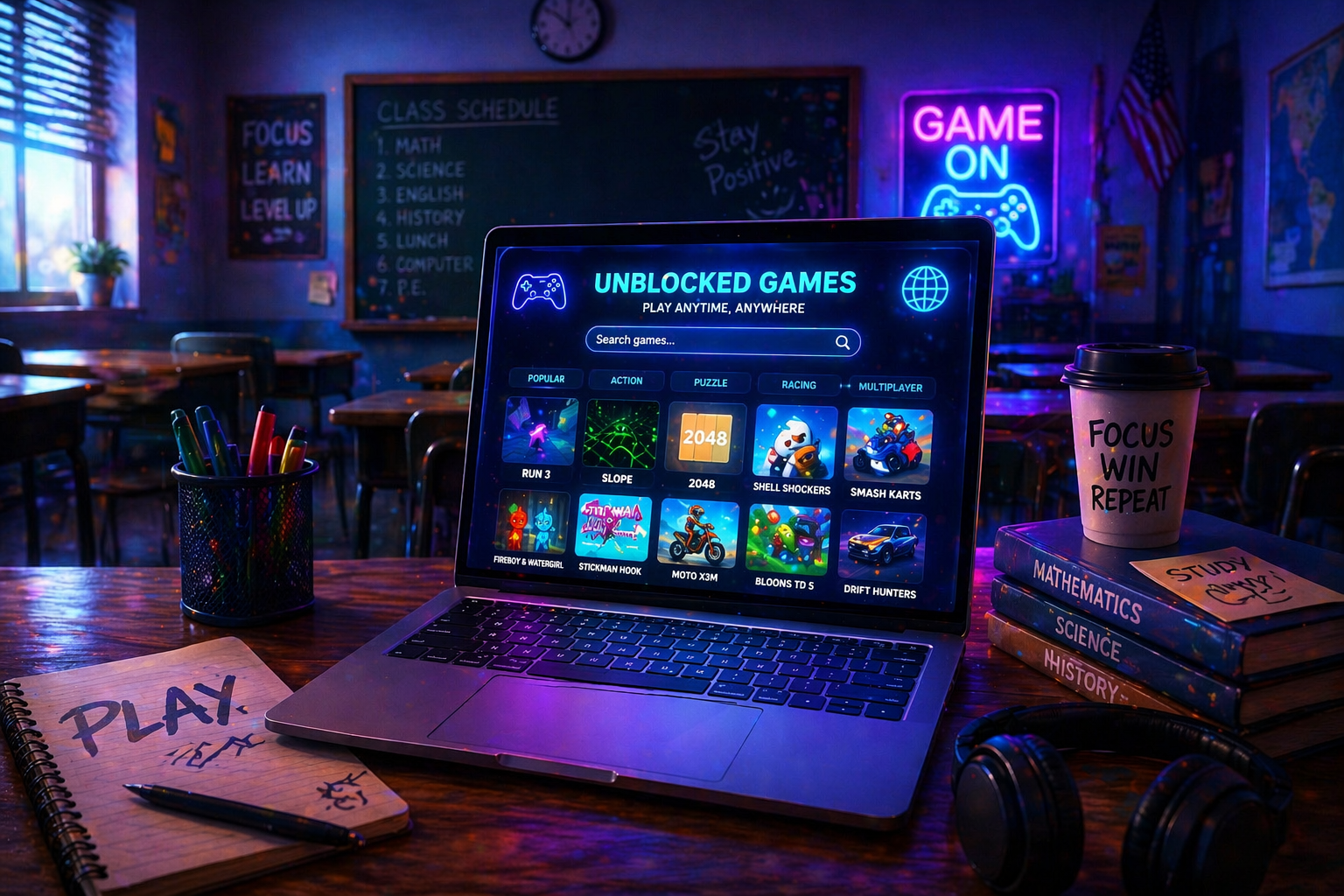
To play games on school WiFi, use browser-based HTML5 games, alternative game URLs, or built-in Google games. These methods work because they don’t require downloads and often bypass basic network restrictions without needing risky tools.
Read On
I’ve been there.
You open a game site… and boom: “Access Denied.”
Good news? School WiFi isn’t as “locked down” as it looks.
You just need to know where to look.
🎮 Why Games Are Blocked On School WiFi
Before jumping into solutions, quick reality check.
Schools block games because:
- They want to save bandwidth
- Prevent distractions
- Filter “non-educational” content
Most systems use basic URL filtering.
👉 That means they block known domains… not the games themselves.
And that’s exactly where the opportunity is.
🔓 Real Ways To Play Games On School WiFi (Tested)
No theory. These are things that actually work.
🌐 1. Use Alternative Game URLs (Most Effective)
This is the easiest trick.
Same game… different link.
Example:
- Main site = blocked
- Mirror / alternative domain = works
I’ve personally used this dozens of times.
👉 Why it works:
Filters block specific URLs, not every copy of the game.
💡 Tip:
Search like this:
- “game name unblocked”
- “play [game] online free”
🧠 2. Play HTML5 Browser Games (Best Option)
This is the safest and cleanest method.
HTML5 games:
- Don’t need downloads
- Load instantly
- Run inside the browser
Most school filters don’t aggressively block them.
👉 Real talk:
Even on strict networks, these usually work fine.
🔍 3. Use Google’s Built-In Games
This one feels like cheating.
Just type in Google:
- “Play Snake”
- “Play Pacman”
- “Solitaire”
And boom… playable instantly.
👉 I’ve used this in classrooms where everything else was blocked.
🕹️ 4. Try Lightweight Game Platforms
Not all game sites are blocked yet.
Smaller platforms often slip through.
What worked for me:
- Newer game sites
- Less popular domains
- Clean, minimal sites
👉 Big sites get blocked first. Small ones stay alive longer.
📱 5. Use Mobile Hotspot (If Allowed)
If school WiFi is too strict:
Switch network.
- Use your phone hotspot
- Connect your laptop
Simple, but effective.
👉 Downside: data usage
⚠️ What DOESN’T Work (And Can Get You In Trouble)
Let’s be honest here.
Some methods are risky.
Avoid:
- Sketchy VPN extensions
- Random proxy websites
- Download-based “bypass tools”
I’ve seen people:
👉 Get malware
👉 Get flagged by school systems
Not worth it.
⚙️ How To Make Games Run Smoothly On School PCs
School computers are… not great 😅
Here’s what actually helps:
- Close all extra tabs
- Use Chrome or Edge
- Turn off unnecessary extensions
- Lower game quality settings
👉 I’ve turned a laggy mess into smooth gameplay just by closing tabs.
🧠 Real Experience: What Actually Works Best?
From experience:
✔ HTML5 games → most reliable
✔ Google games → safest fallback
✔ Alternative URLs → best for variety
❌ VPN/proxy → risky + unnecessary
If I had to choose one?
👉 HTML5 browser games. Always.
🔐 Are You Breaking Rules?
Let’s be real for a second.
Technically… yes (sometimes).
But:
- Playing lightweight games quietly = usually ignored
- Using risky bypass tools = problem
👉 Use common sense. Don’t overdo it.
🚀 Future Of School WiFi & Gaming
Schools are getting smarter.
But so are browser games.
Trend:
- More cloud-based games
- Faster, lighter engines
- Harder to fully block
👉 In short: this “game” isn’t ending anytime soon.
🎯 Final Thoughts
School WiFi looks strict… but it’s not impossible.
You don’t need hacks.
You don’t need risky tools.
Just smarter methods.
Open your browser.
Find the right game.
Play quietly 😄